
Download TikTok Videos on PC and Mac
- Windows
- Mac
- Chromebook
- No Software
Works in Chrome, Edge, Firefox and Safari
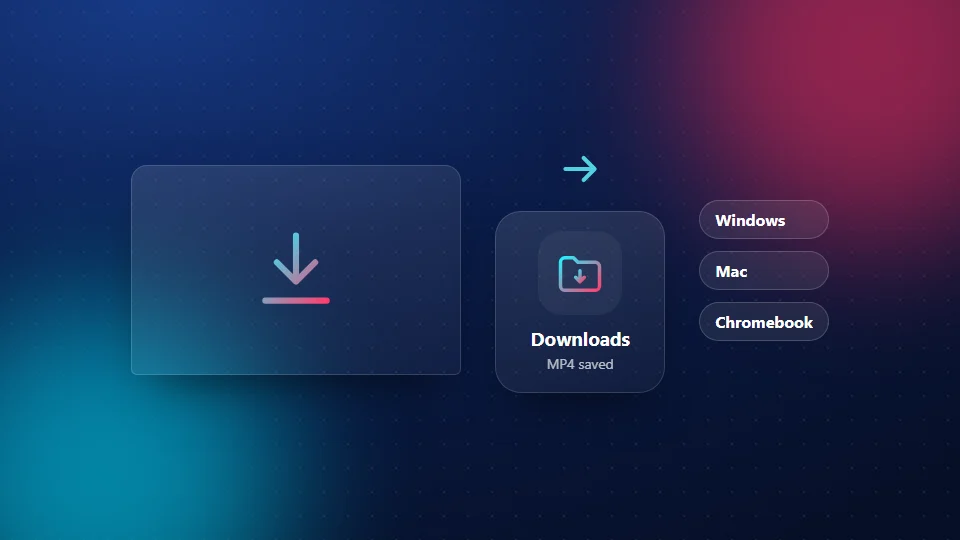
Download TikTok videos on PC, Mac or Chromebook with SnapTik, in the browser you already use. Copy the video's address from tiktok.com, paste it in the box above and save the MP4 to your Downloads folder. There's no software to install and no account to make.
How to download TikTok videos on PC
Copy the link
Open the video on tiktok.com and copy the address from the bar at the top of your browser. You can also right-click the video and choose Copy link.
Paste the link
Open snaptikhd.org in a new tab and paste the link into the box.
Download
Click Download.
Pick your file
Pick a size. The file goes to your Downloads folder.
That's all it takes to download TikTok videos on PC. Bigger screens show the difference between sizes, so take 1080p when it's there. Our HD page explains each size.
On a Mac
Safari, Chrome, Edge and Firefox all work. Safari saves files to Downloads by default, and you'll find them in the Dock or in Finder. If the video opens in a new tab instead of saving, press Control and click the download button, then choose Download Linked File.
On a Chromebook
Use Chrome as normal. When the download finishes, open the Files app and go to Downloads. MP4 files play in the Chromebook's built-in video player.
Change where your downloads go
- Chrome: Settings > Downloads > Location.
- Edge: Settings > Downloads > Location.
- Firefox: Settings > General > Files and Applications.
- Safari: Settings > General > File download location.
Chrome's own help page explains how to change the download location.
Send a link from your phone to your computer
Found the video on your phone? Copy the link in TikTok, then send it to yourself by email, a chat app or your browser's "send to device" feature. Open it on your computer and paste it into SnapTik. Only want the sound? Use the MP3 tool the same way.
Use the file anywhere
The MP4 opens in any video player and any editing app. Our TikTok to MP4 page has tips for editing, TVs and sharing without losing quality.
Pros and cons
Pros
- Nothing to install on Windows, Mac or Chromebook
- No watermark and real size labels
- Works in Chrome, Edge, Firefox and Safari
- Files go straight to Downloads
Cons
- You need to copy the link from the site or your phone
- One link at a time
- Public posts only
Frequently Asked Questions
Do I need software to download TikTok videos on PC?
No. SnapTik works in your browser. You don't install anything on Windows, Mac or Chromebook.
Which browser works best?
Any up-to-date browser works: Chrome, Edge, Firefox or Safari. If one opens the video instead of saving it, try another or use the right-click menu.
Where do the files go on a Mac?
To your Downloads folder. Open Finder and click Downloads in the sidebar.
Can I download many TikToks at once?
No. SnapTik handles one link at a time. Paste the next link when the first file has saved.
Will the videos have a watermark?
No. The MP4 files have no TikTok logo or username.
Is SnapTik an official TikTok tool?
No. SnapTik at snaptikhd.org is an independent tool. We are not part of TikTok or ByteDance. It's a free, browser-based way to download TikTok videos on PC and Mac.